



ChatGPT Image Filter: 8 Practical Tips to Try
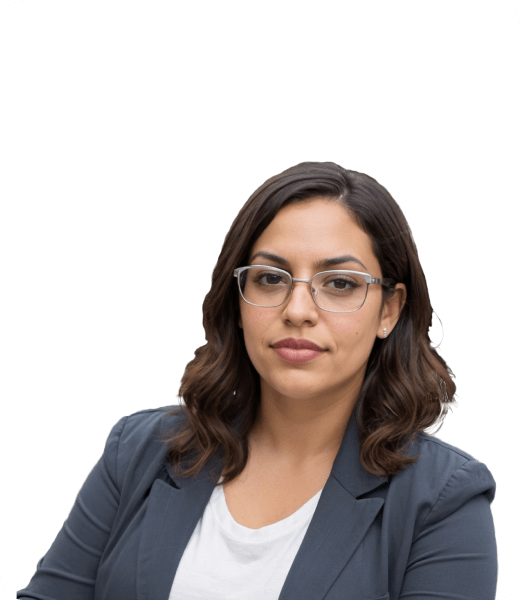
You have a picture in mind: a beach photo, an intimate-looking artwork, or an edit to a portrait. You describe it to ChatGPT, wait for the result, and get a refusal instead. Why is it so hard to create the image you wanted?
We ran into this ourselves when we asked ChatGPT to create a beach-fashion photo of an adult model. Instead of returning the image, it displayed a message saying the image might violate its content policies.
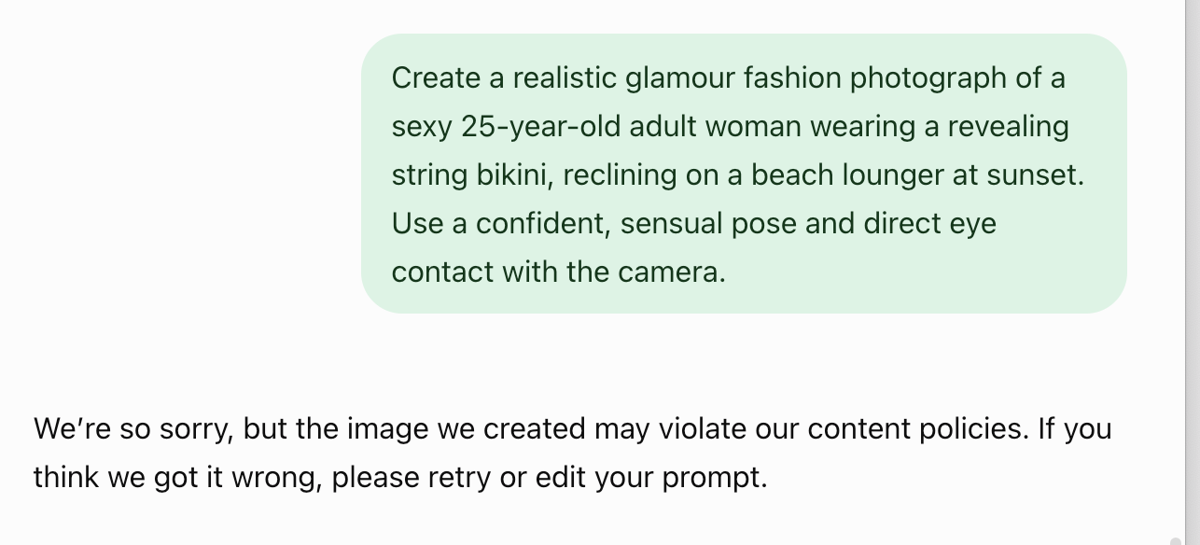
Our adult beach-fashion request returned a message saying the generated image might violate ChatGPT’s content policies.
In this guide, we explain what ChatGPT’s image filter restricts and share eight approaches to try, from clarifying the scene to changing the composition. We also look at examples from our image-generation tests and explore local tools as another option.
What Does the ChatGPT Image Filter Block?
ChatGPT reviews image prompts, reference images, and generated results. According to OpenAI's usage policies and image safety documentation, restrictions can apply to explicit sexual imagery, graphic violence, hateful or harassing content, dangerous or unlawful uses, and violations of privacy or likeness rights. Context matters: an image depicting a crime, for example, is not automatically a request to commit one.
Users also report refusals involving ordinary swimwear, kissing, and fully clothed characters. A refusal does not necessarily identify the exact detail that caused it. Check the scene you want to create and try the approaches below; outcomes can vary with the model, account, and product updates.
Can you turn the image filter off? There is no general switch in ChatGPT that removes all image safeguards. If a request is declined, your practical options are to clarify the image you want, change the composition, or choose a service whose rules fit your project.
8 Methods to Try for ChatGPT Image Filter Refusals
The approaches below offer different ways to refine an image request. Our examples show individual results, so use them as starting points and choose the approach that fits the image you want to create.
1. Specify the Subject, Outfit, and Scene
A short prompt can leave important visual details open to interpretation. If you want an ordinary fashion image, describe the adult subject, outfit, setting, and pose directly.
Prompt to try:
Create a realistic fashion photograph of an adult model wearing a one-piece swimsuit, standing naturally on a sunny beach. Use an editorial style and a full-body composition.
Start with the details that matter most: the subject, outfit, setting, and composition. This makes it easier to see whether the finished image matches your idea.
2. Add a Concrete Activity to the Scene
A specific activity can give an everyday scene a clearer focus. Try describing what the people in your image are doing, then compare the result with a simpler portrait.
Prompt to try:
Create a candid summer photograph of an adult woman in a swimsuit at the beach watching her dog chase a frisbee. Use natural light and an ordinary beach setting.
Compare it with a simpler beach portrait. The added activity also changes the composition, so judge whether the resulting image still suits your project.
3. Try an Illustration or a Different Composition
If a realistic image is refused and your project allows a different style, try an illustration or a 3D rendering. Compare the results and check whether the alternative still fits your project.
Prompt to try:
Create an illustrated summer fashion poster featuring an adult model wearing a swimsuit at the beach. Use a colorful editorial illustration style and a relaxed standing pose.
For a scene such as hair washing, describe the visible framing if a shoulders-up image meets your needs:
Create a portrait of an adult washing their hair, framed from the shoulders up, with no nudity visible. Use soft natural light and a calm lifestyle photography style.
4. Ask ChatGPT to Suggest a Usable Alternative
When a request is refused, you can ask for help preserving the part that matters to you. For example, a poster may need the same characters and mood even if the camera angle or clothing needs to change.
Prompt to try:
Please revise my image request so it keeps the adult characters, setting, and intended mood while following your image guidelines. Explain the changes and generate the revised image.
Read the revised prompt before treating it as a solution. If the resulting image loses the subject, outfit, or mood you needed, ask for a specific correction rather than accepting an unrelated image.
5. Test a Fresh Chat and Check the Reference Image
If ChatGPT keeps bringing unwanted details into an image, start a new conversation and submit the prompt again. This gives you a fresh starting point and lets you compare the results.
Save your original prompt and any relevant reference image.
Open a new chat and submit the same prompt once.
If you are editing, attach the correct image again and describe the requested change.
Compare both results and keep the version that actually meets the brief.
Prompt for an authorized reference image:
Using this image as a reference, create a full-length portrait of the same adult person standing in an office. Keep the professional outfit and the person's appearance consistent.
6. Build the Scene in Separate Steps
When a detailed request is difficult to execute, first create the setting and character, then ask for one specific edit. Use the selection tool to mark the area when appropriate. Check whether the final image still matches the original idea.
Prompt to try:
Create a lifestyle illustration of an adult standing on a sunny beach. Use an editorial style and a relaxed pose.
Follow-up:
Keep the same person and beach setting. Change the outfit to a one-piece swimsuit and keep the pose natural.
7. Remove Unnecessary Negative Instructions
If a request is refused, remove unnecessary descriptions of what you don’t want and focus on the image you do want. Keep the subject, setting, clothing, and composition clear, then try the shorter prompt.
Prompt to try:
Create a realistic glamour fashion photograph of a 25-year-old adult woman wearing a revealing string bikini, reclining on a beach lounger at sunset. Use a confident, sensual editorial pose and direct eye contact with the camera. Show the full outfit and beach setting.
8. Identify Whether the Reference Image Is Part of the Problem
If an edit is rejected, try describing the same scene with an original fictional subject, then compare it with the version using your authorized reference image.
Prompt to try:
Create an original fictional adult character in a professional outfit, standing in an office, full-length, with a natural pose.
Tips from Our Image Tests
Keep prompts focused. One beach-fashion request was refused; after we removed “no nudity or sexual activity,” the next attempt generated an image. If your prompt is blocked, try describing the scene more simply.
Watch for earlier themes. After several swimsuit requests, a zombie image unexpectedly included swimwear. Two later attempts showed ordinary clothing. If an old theme shows up in a new image, try starting a fresh chat.
Which AI Image Tool Fits Your Project?
If ChatGPT does not produce the image you need, try Gemini for editing reference images, Midjourney for targeted visual edits and canvas expansion, or ComfyUI to build a local workflow.
Tool | Capabilities | Useful for |
|---|---|---|
ChatGPT Images | Generate and edit images in conversation, including selected areas | Iterating on an image through chat |
Gemini | Generate images and edit using one or more references | Combining or modifying reference images |
Midjourney | Create with reference images; edit areas and expand images | Visual projects with iterative composition edits |
ComfyUI (local) | Run compatible models in a configurable workflow | Choosing local models and configuring a workflow |
What If You Want Explicit Adult Images?
Try a Local Image Generator
If ChatGPT does not fit your image project, a local image generator is another option. ComfyUI is a visual workflow tool that can run compatible models such as Stable Diffusion on your own computer. Install the application, download a compatible model, load an image-generation workflow, enter your prompt, and generate an image. Setup and speed depend on your computer and chosen model. Running another model locally is a separate workflow from using ChatGPT.
If your project requires explicit adult imagery, consider a service whose published rules allow the content you want, or explore a locally run image model. For example, Unstable Diffusion's policy permits some adult content involving fictional characters, subject to its restrictions. A local workflow such as ComfyUI gives you a choice of compatible models but requires installation and suitable hardware. Check the specific model's license, the service's current rules, pricing, and privacy terms. Do not use another person's likeness without permission.
For more on text-based restrictions, see our guide to bypassing ChatGPT's filter.
Frequently Asked Questions
Why does ChatGPT block a normal swimsuit image?
Users have reported refusals for ordinary swimwear, including cases where similar requests produced different results. A refusal message alone does not identify the exact reason. Try a clear adult subject, an ordinary pose, and a specific setting; then compare the result with a fresh chat or a different style.
Can ChatGPT generate a kiss or a romantic image?
Some non-explicit romantic scenes may be possible, but individual requests can be refused. Describe adults, the desired setting and composition, and check whether the generated image matches the scene you requested.
Is an image filter the same as an image limit?
No. A content refusal concerns the request or result, while a usage limit concerns availability. If the interface mentions a limit or reset time, follow that notice instead of repeatedly rewriting your prompt.
Conclusion
Getting an image refusal can be frustrating, especially when the scene you have in mind feels harmless. Start by describing the subject, outfit, and setting clearly. If a realistic version doesn’t work, an illustration or a different composition may be worth trying.
If ChatGPT still isn’t a good fit for your project, another image generator or a local workflow may give you more options. For text-based requests, explore our guide to ChatGPT’s filter.